All product image guides AI product photography from a phone photo

Start with the product you can inspect.

A phone is enough to make a usable reference if the item is clear, fully visible, and truthfully photographed. Fayvoro can build a new scene from that image, while the final product details still need your review.

Upload your product photo Two free credits when you sign up. Review the result before publishing.
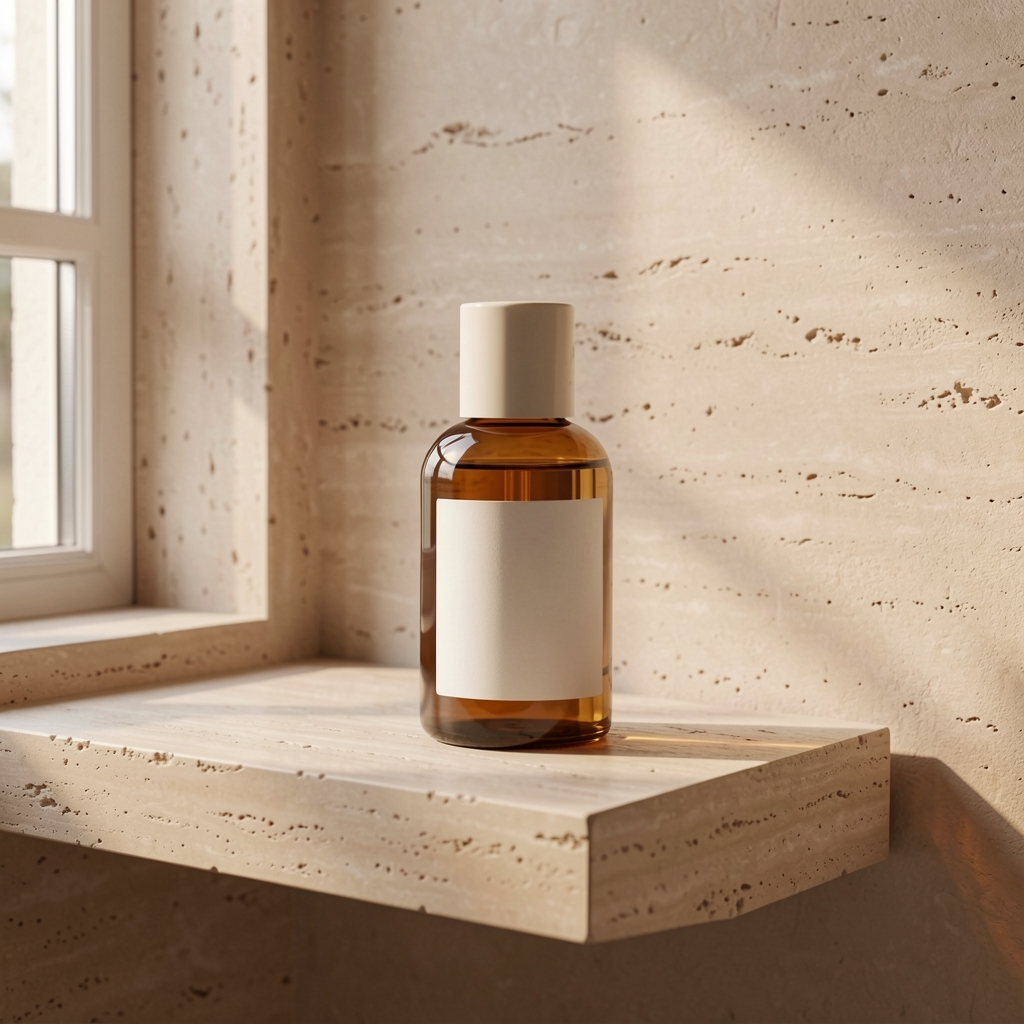
Live Fayvoro scene generated from the demonstration bottle input
LIVE FAYVORO RESULT
01 / EXAMPLEGENERATED WITH FAYVORO
What this shows

A clear source gives you something to compare.

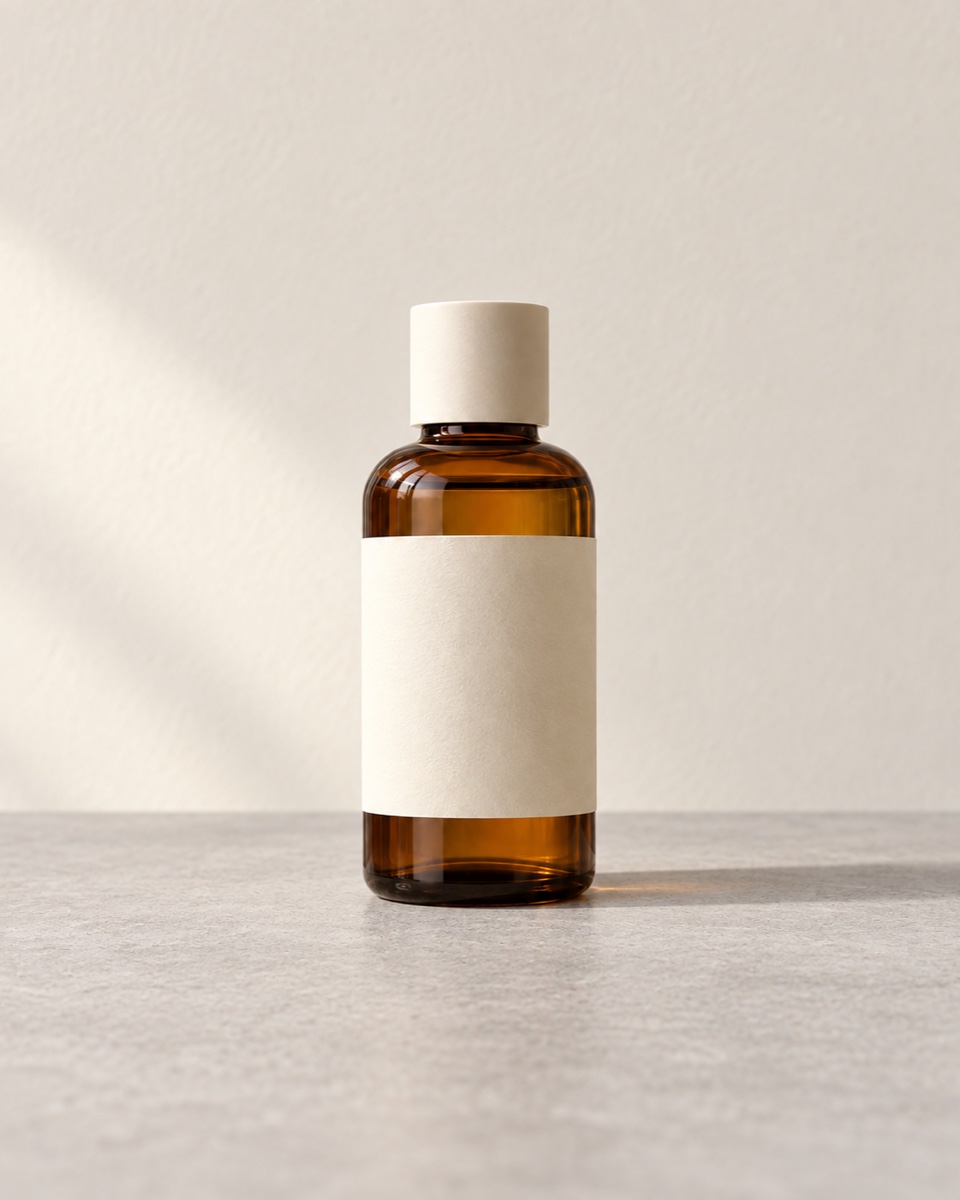
The real bottle input shows the product boundary and front before generation. We cannot identify its capture device, so use it as an inspection example while preparing your own phone photo.

Clear unbranded amber bottle input made for the Fayvoro demonstration
Input photoReference used for this demonstration.
Live Fayvoro scene generated from the demonstration bottle input
Live Fayvoro resultThe camera used for this demo input was not recorded. This pair demonstrates photo input to scene output, not a verified phone-camera result.

This is one demonstration result; your result may differ. AI can change product shape, color, packaging, labels, and text. Check every important detail against the real item.

02 / A PRACTICAL WORKFLOWSTART WITH YOUR PHOTO
01

Photograph the real SKU first

Clean the item, use soft light from one direction, and leave the full outline in the frame. A plain surface and steady phone help you see color, reflections, edges, and important markings. Photograph the actual variant you sell rather than asking AI to infer another one.

Keep an original front or detail photo for the listing if customers need to verify text, material, dimensions, or construction. One source view cannot prove an unseen back or interior.

Decide whether more pixels will help — Compare resizing, upscaling and a new real capture before choosing a larger file.

02

Check the file before an attempt

Fayvoro accepts JPG, PNG, and WebP images under 10 MB in photo mode. A phone may save HEIC by default; export a supported copy before uploading. The local checker below reads the selected file in your browser and shows format, size, and pixel dimensions without sending it to Fayvoro.

A compatible file is not automatically a good reference. Retake the picture if the product is clipped, blurred, tiny in frame, or hidden by a strong reflection. There is no promised minimum pixel size or automatic quality score here.

Check permission for the source image — Record who owns the photo and whether the intended edit and upload are permitted.

03

Generate one scene, then compare

Choose a scene and one of Fayvoro’s available formats, add a short lighting or placement note, and check the displayed credit cost before generating. Compare the output with the untouched phone photo at full size.

If shape, color, quantity, or packaging changes, keep the accurate source for that use or retake the input. A generated lifestyle image is an additional candidate, not an invented replacement for factual product shots.

Prepare a supported phone-photo copy — Export HEIC into JPG, PNG or WebP and verify the resulting file before upload.
Local file check

Know your input
before upload.

Select a photo to check the same file type and size gate used by the current studio. The browser reads it locally here; this check does not upload the file, generate an image, score photo quality, or guarantee the service can use a damaged file.

JPG, PNG, and WebP are supported, up to the current 10 MB file limit.

Keep the original product image for factual views. The generated scene can still alter the item even when the input file passes this check.
Direction to try

A useful starting note.

Use this as a starting point, then adjust it for your own product. No prompt can guarantee exact product details.

Use my uploaded photo of the real product as the reference. Place the whole item on a simple stone surface in soft window light. Keep room around the edges, avoid new labels or extra products, and leave physical details for review against my original.
Before you publish

Check the details.

  • The file is JPG, PNG, or WebP and under 10 MB.
  • The photo shows the actual SKU with a complete, clear outline.
  • Original photos of labels, dimensions, and hidden sides are kept.
  • The generated result is compared with the source before use.
Common questions

A few things to know.

Do I need a professional camera?

No particular camera is required. A clear supported image can be uploaded, but a phone photo with clipped or unreadable product details may be a weak reference.

Can I upload a HEIC photo directly?

The current photo uploader accepts JPG, PNG, and WebP, not HEIC. Export a supported copy and use the checker before opening the studio.

Was the bottle demo shot on a phone?

Its capture device was not recorded. The pair only verifies that the live service generated a new scene from a supplied image.

Make your image
with intention.

Upload your product photo