All product image guides Sticker Sheet Product Photography

Show what peels away and what stays on the sheet.

A printed preview can make a sticker sheet look like one large sticker. Photograph the real cut construction, finish and supplied sheet before choosing a desk scene. Buyers need to understand the physical product as well as the designs.

Explore a scene from your real photo Two free credits when you sign up. Review the result before publishing.
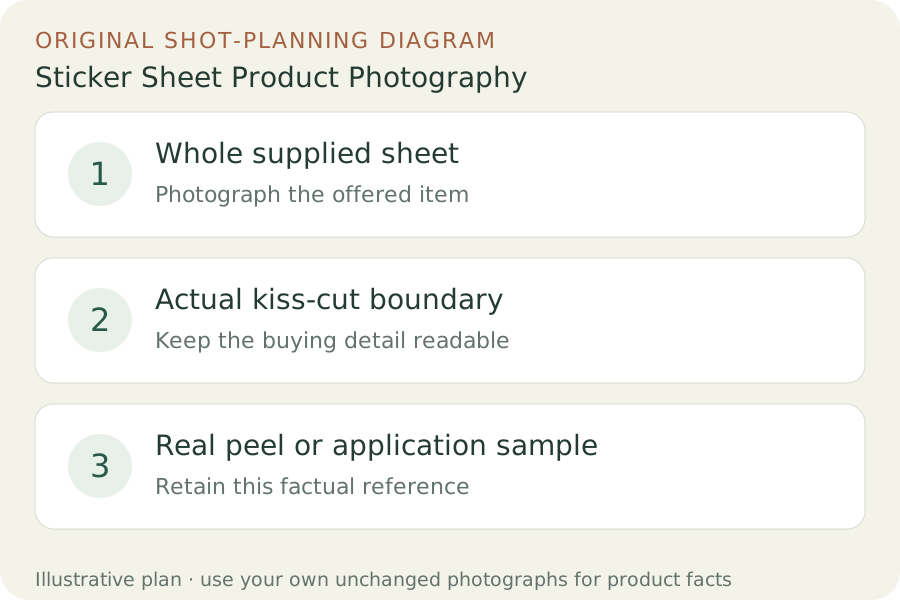
Original teaching diagram: Whole supplied sheet, Actual kiss-cut boundary, Real peel or application sample
EDITORIAL CONCEPT
01 / EXAMPLEILLUSTRATIVE CONCEPT
What this shows

Give each photograph one clear job.

Use the three labeled views to plan your factual gallery. The outlines show composition roles only; they contain no observed dimensions, verified materials or performance measurements. Keep real photographs beside any secondary scene candidate.

Original teaching diagram: Whole supplied sheet, Actual kiss-cut boundary, Real peel or application sample
Editorial conceptOriginal teaching diagram for shot planning. Illustrative outlines, not a photograph of inventory, a Fayvoro output or a customer example.

This image is an editorial concept made for the site. It is not a Fayvoro generation or customer result. AI can change product shape, color, packaging, labels, and text. Check every important detail against the real item.

02 / A PRACTICAL WORKFLOWSTART WITH YOUR PHOTO
01

Distinguish a sheet from individual sticker products

Record the offered sheet size, design set, material and finish. Take a square-on view with the entire outer shape visible. Keep all stickers visible enough to understand the set. If the customer buys a sheet, do not substitute separate die-cut samples for the main photograph without clearly naming their different role.

StickerApp describes sticker sheets as several individually kiss-cut stickers on one backing liner. Use a real closer frame to show that boundary on your offer. Keep the difference between the outer sheet edge, individual cut line and artwork clear. Printed color borders are not necessarily cut lines, and a digital design export does not demonstrate how the finished sheet peels.

02

Photograph the liner and an honest sample

Use gentle light across the sheet so the surface finish is visible without washing out the artwork. Add a closer frame for a cut boundary. When demonstrating a peel, use a separate sample and keep both sticker and backing visible. Do not count that peeled sample as an untouched sale sheet unless that is how the offer is supplied.

If showing a sticker on a notebook or other object, use a real applied sample and say whether the receiving object is excluded. Photograph the result without implying an adhesive test or a durability rating. A shiny reflection may describe laminate, but it does not establish waterproofing or suitability for every surface. Keep any performance claim tied to the actual material documentation.

03

Try a stationery scene without changing the design set

Use one real sheet photograph for a Fayvoro desk scene candidate, keeping the complete sheet flat and unobstructed. This is not a cut-line editor, vector export workflow or printable production file. Keep your manufacturer-ready artwork and real product photographs separate.

Check sticker count, artwork, spelling, spacing, outer edge and any visible peeled area. Reject invented motifs, merged cuts or a scene that makes the sheet look already applied to the desk. If the artwork is too detailed to verify, retain the original product photograph and use the candidate only as an identified internal composition idea.
Direction to try

A useful starting note.

Use this as a starting point, then adjust it for your own product. No prompt can guarantee exact product details.

Use my actual sticker sheet photograph for one quiet stationery-desk display. Keep the whole sheet, real artwork and outer edge visible on a plain matte surface with soft light. Do not peel, apply, add or replace stickers. I will compare every design and cut boundary with the real sheet.
Before you publish

Check the details.

  • Main photograph shows the actual supplied sheet.
  • Outer edge and individual cut boundaries are distinguished.
  • Design count, wording and finish match the real product.
  • Peeled or applied examples are real samples with clear status.
  • Scene does not imply adhesive, waterproof or production-file proof.
Common questions

A few things to know.

Can I use artwork alone as a product photograph?

It can be a clearly identified design preview, but it does not show the real cut lines, liner or finish. Add actual product photographs.

Should I show a peeled sticker?

A real peel sample can explain construction. Identify it as a sample and retain a full untouched-sheet view for what the buyer receives.

Can Fayvoro export sticker cut lines?

This workflow creates a raster scene candidate from a photograph. It does not demonstrate vector cut-line or print-production export.

Make your image
with intention.

Explore a scene from your real photo