02 / A PRACTICAL WORKFLOWSTART WITH YOUR PHOTO
01Choose a featured image that works beyond the gallery
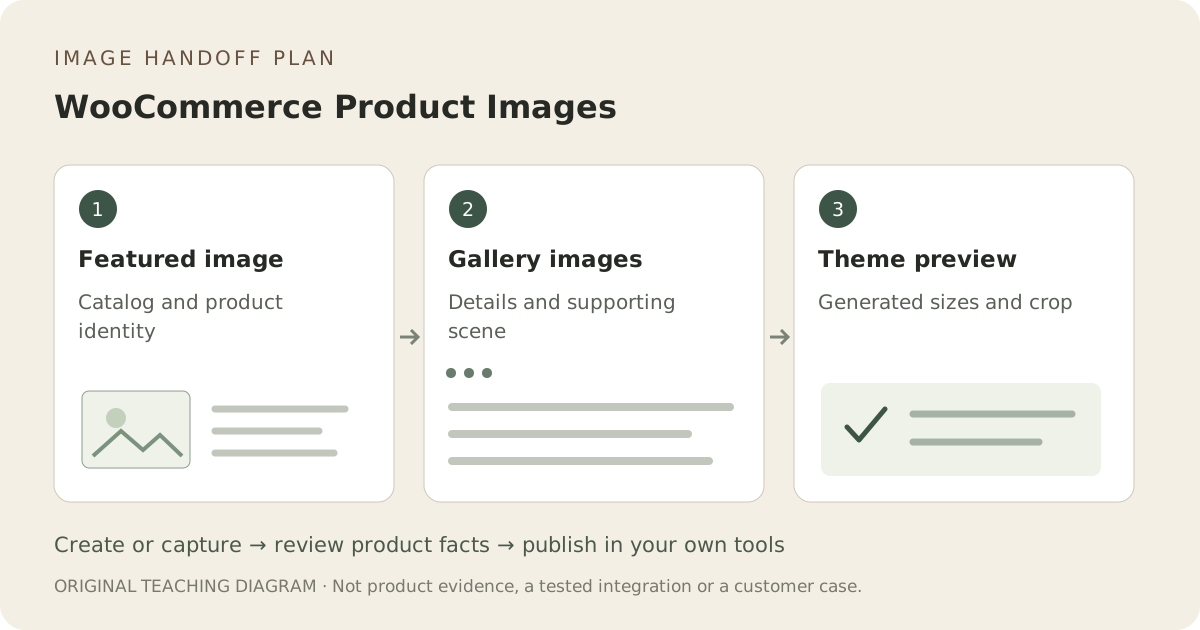
WooCommerce distinguishes the single product image, catalog images and thumbnails. Use a clear actual-product view as the featured image, then assign the gallery to different buyer questions. Do not repeat the featured image in the gallery just to make the set longer; it is already the first product-page image.
Diagnose a blurry or cropped view before regenerating
The official guide recommends a source of at least 800 by 800 pixels, with larger images useful for fine detail. Your theme can control generated widths and cropping. Compare the uploaded master, the delivered image size and the displayed container. A theme serving a small thumbnail at large size will not be fixed by adding a new background.
Upload an approved scene as an additional image
Use Fayvoro to test one supporting scene from a real photograph, compare it with the SKU, and download the approved result. Add it through the product gallery in your own WooCommerce admin. Fayvoro has no WooCommerce plugin, automatic gallery synchronization or exact product-preservation guarantee.
Test one product before repeating the workflow
Preview the shop grid, product page, zoom if supported and cart on a narrow screen. Look for a cut-off handle, an oversized thumbnail or a repeated gallery view. Keep the successful source and crop settings with that product. Only then apply the same image preparation to other products that fit the same layout.