02 / A PRACTICAL WORKFLOWSTART WITH YOUR PHOTO
01Assign roles before editing the product
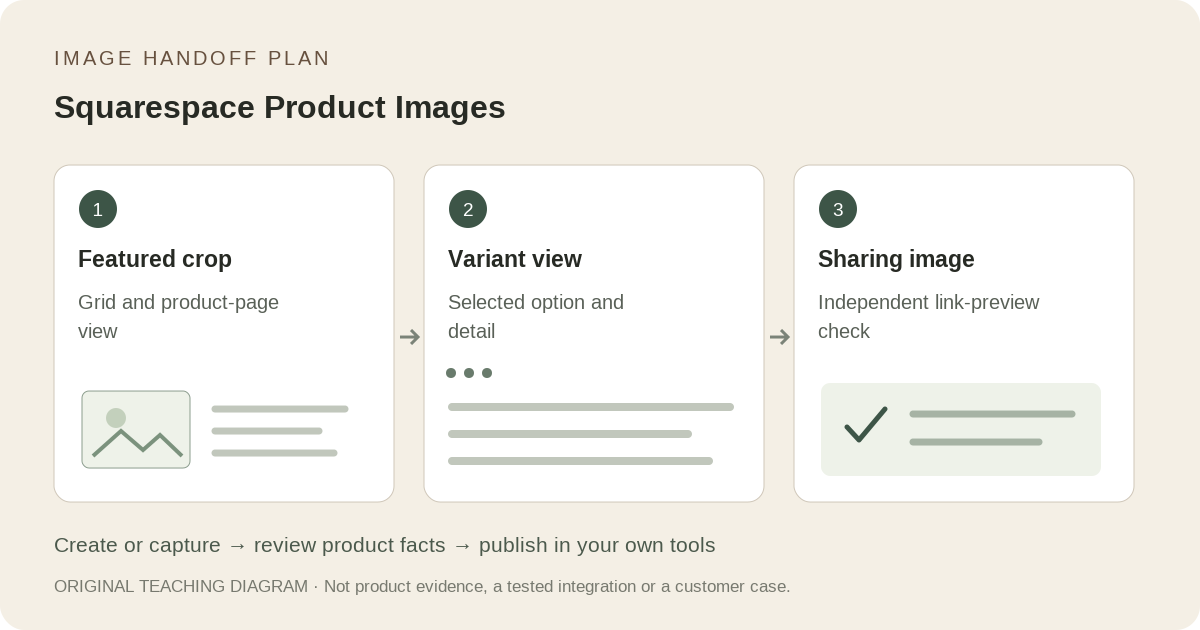
Use an accurate whole-item photograph for the featured image, real detail and angle photographs as additional views, and a separate actual photograph for each visually different variant. Squarespace also supports an alternate social sharing image. That alternate is a link-preview role; it is not the source of truth for the selected option.
Test the crop on representative products
Squarespace image display varies by site version and layout. The current guide recommends preparing the desired ratio before upload. In version 7.1, product-page design changes apply across products. Test a tall bottle and a wide item before choosing a global layout, so a good crop for one does not cut off another.
Create a scene with room for your chosen layout
Fayvoro can explore a supporting setting from your product photo. Ask for breathing room around the subject, then check the full result and the actual Squarespace crop. The studio does not set your theme focal point, preserve every label or deliver files directly into Squarespace.
Preview each route that reuses the image
Check the store grid, product details and each variant selection, then share the product link in a preview tool you already use. Compare the alternate sharing image with the live URL. Keep important product facts in page text and true detail views; a cropped social scene should not be the only place a buyer can inspect them.