PRODUCT STORIES / A CREATIVE GUIDE

Shopify Collection Images

Give the collection its own representative and test where it leads.

A collection image introduces an assortment. It is not necessarily the first image of any one product. Select it as a category-navigation asset, then verify the real collection destination and the products a shopper will find there.

Sign up for 3 free credits · Your starting direction is included.See the example
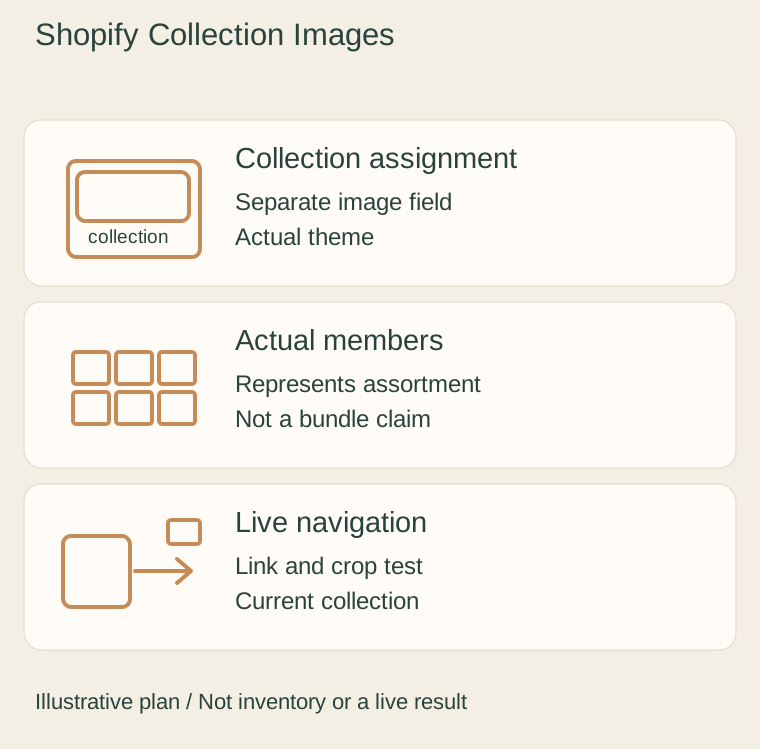
Original illustrative plan: Collection assignment, Actual members, Live navigation.
EDITORIAL CONCEPT
01 / EXAMPLEILLUSTRATIVE CONCEPT
What this shows

Give each view a specific job.

Use this illustrative plan to organize real evidence and a separate optional scene. The drawn objects and quantities do not specify the item you sell.

Original illustrative plan: Collection assignment, Actual members, Live navigation.
Editorial conceptOriginal teaching diagram. It is not a photograph of inventory, measured specification, live Fayvoro result or customer case.

This image is an editorial concept made for the site. It is not a Fayvoro generation or customer result. AI can change product shape, color, packaging, labels, and text. Check every important detail against the real item.

YOUR STARTING IDEA

Take the direction. Make it your own.

Use my real representative-product photo for one quiet collection-entry scene. Keep the subject easy to recognize with no extra products or headline text. I will compare the product with the source and test the saved image in my actual collection theme.
Add your reference photo in the studio, then adjust the direction.
Before you publish

Compare the result with your real product and your destination’s requirements.

  • The representative belongs to the actual linked collection.
  • Collection featured-image and theme-specific image settings are checked separately.
  • The live card leads to the intended current assortment.
  • Category recognition and subject crop are tested on phone and desktop.
02 / A PRACTICAL WORKFLOWSTART WITH YOUR PHOTO
01

Separate collection assignment from product media

List the collection, its current products and the place the image will appear: collection list card, collection page header or another theme section. Choose a representative that belongs to the actual linked assortment. A single recognisable item can be clearer than a generated pile, but the copy must not imply a bundle or an included multi-product offer.

Shopify provides a collection featured-image setting independent of product media. Change that image on the intended collection and save the assignment, then inspect the actual theme. A theme section may use its own image setting or fall back to a product image; do not assume every placement will display the collection’s featured image.

02

Test the collection navigation and crop

Open the store preview at the actual collection-list placement. Check the image beside the collection name, follow its link and confirm that the destination contains the expected current products. Repeat for adjacent collections so the visuals help shoppers distinguish categories rather than showing several interchangeable scenes.

Inspect phone and desktop framing in the actual theme. Keep the category-defining subject visible when the card crops the image. Use the theme’s documented controls for crop or focal point where available; there is no universal collection-image dimension that guarantees every card or banner behaves the same way. Retain the source file and the chosen assignment so you can repair a later theme change.

03

Trial one representative scene and publish it manually

Use your real product photograph for a Fayvoro scene candidate only where that product genuinely represents the collection. Review product details against the original before uploading the image in Shopify. The service does not connect to your store, choose collection membership or update the collection image automatically.

Keep a factual product gallery and make the collection’s visual promise match its current assortment. If the featured item leaves the collection or becomes unavailable, review the representative again. Record the published page and navigation result; an accepted image file is not evidence of more visits or purchases.

Common questions

A few things to know.

Is a collection image the same as a product’s first image?

No. Shopify has a separate collection featured-image assignment. Your theme may choose which setting to use in a particular section.

What size guarantees every collection card will work?

No one dimension guarantees all themes and placements. Check the actual section shape, crop and theme documentation.

Will Fayvoro upload the image into Shopify?

No. Download an approved candidate, assign it manually in your store and test the actual published destination.

Make your image with intention.