02 / A PRACTICAL WORKFLOWSTART WITH YOUR PHOTO
01Find which image the store is reusing
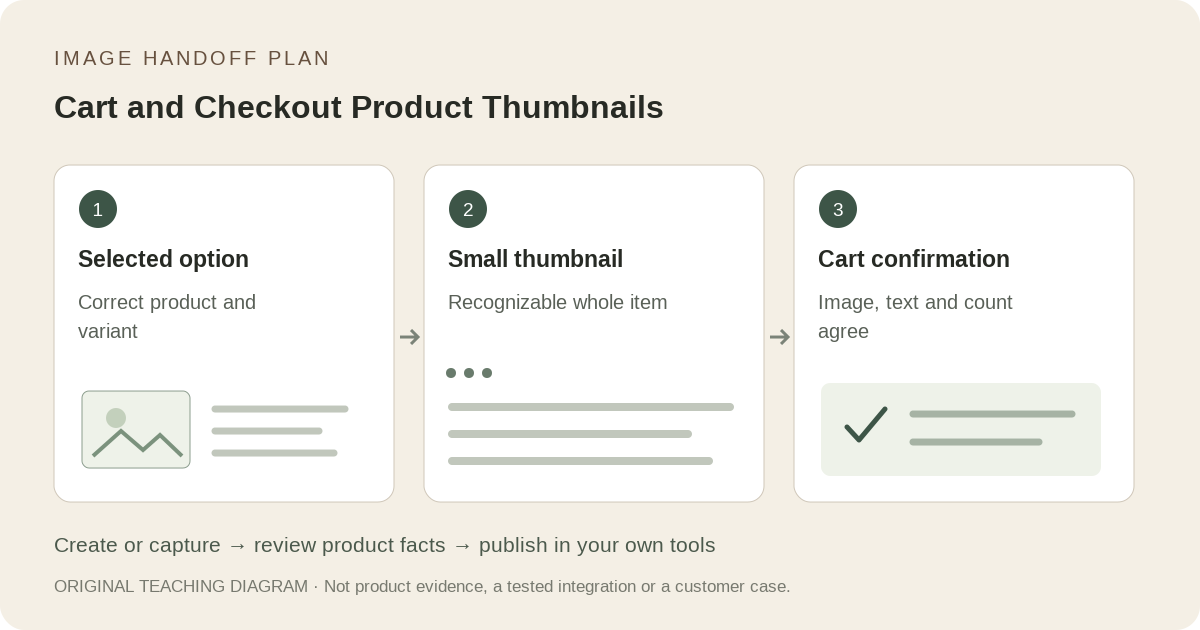
Shopify documents that the main product media is reused on collection, cart, checkout and home-page surfaces. Your theme or integrations may change how variants are shown. Trace the actual image delivered in your cart instead of assuming the gallery image you last edited is also the checkout source.
Choose a recognizable view for a small container
Use a factual whole-item photo with readable outline and enough contrast. For a color-sensitive option, keep the identifying area large enough to recognize at thumbnail size. Remove decorative clutter in an export copy without altering the product. Do not depend on tiny label text to distinguish two variants.
Test a selection change and the return path
Select one option, add it to the cart and compare thumbnail, title, option label and quantity. Then change the option and repeat. Also test a return from cart to product page; the buyer should not land on a default option that silently differs. This is a store-mapping check, not an image-generation job.
Keep scene creation separate from confirmation evidence
Fayvoro can explore an optional product-page lifestyle scene, but it does not control cart mappings, diagnose your theme or preserve exact variant details. Keep an accurate real view for checkout confirmation. If a generated scene is used elsewhere, review its product facts and manually configure the intended role in your store.