PRODUCT STORIES / A CREATIVE GUIDE

Email Product Images

Make the email work even before its picture loads.

A campaign image is only one part of an email. The recipient should still understand the product and next step when images do not load, and the image should lead to the same item described by the surrounding text.

Sign up for 3 free credits · Your starting direction is included.See the example
A fictional orange notebook and dark pen beside empty space for an email layout.
EDITORIAL CONCEPTEmail composition concept with room for separate HTML copy. This is not a campaign performance result.
01 / EXAMPLEILLUSTRATIVE CONCEPT
What this shows

Give each image a specific delivery job.

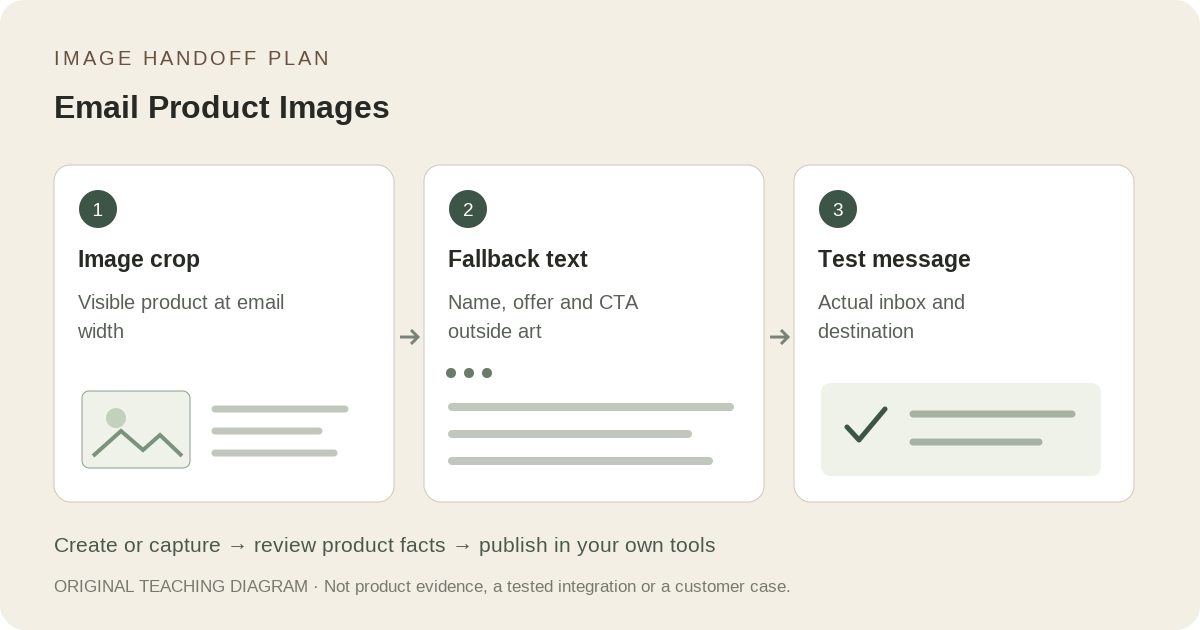
This illustrative workflow separates image creation from the checks and publishing steps you complete in your own tools. The sequence is a planning aid, not a tested integration or evidence of listing approval.

Original illustrative workflow: Image crop, Fallback text, Test message
Editorial conceptOriginal teaching diagram, not a product photograph, Fayvoro result, platform screenshot or customer case.

This image is an editorial concept made for the site. It is not a Fayvoro generation or customer result. AI can change product shape, color, packaging, labels, and text. Check every important detail against the real item.

YOUR STARTING IDEA

Take the direction. Make it your own.

Explore a clean supporting scene around my uploaded product, with the subject prominent and unobscured. Leave a modest quiet area for my email layout. Do not add copy, prices, buttons, promotional badges or another product.
Add your reference photo in the studio, then adjust the direction.
Before you publish

Compare the result with your real product and your destination’s requirements.

  • Product name, offer and CTA remain available as text.
  • Crop is readable at the actual mobile email width.
  • Hosted image and click destination both load for recipients.
  • Images-off and test-inbox behavior were checked.
02 / A PRACTICAL WORKFLOWSTART WITH YOUR PHOTO
01

Write the message before generating its background

Choose one product, one factual reason to look and one destination page. Put the product name, price or offer terms and button in the email editor as real text. Mailchimp’s image-design guidance notes that blocked images can hide image-based messages; avoid putting the entire campaign into one poster.

02

Create a crop for the content column

Start with a real photograph that already shows the SKU clearly. An optional Fayvoro setting can leave room for your layout, but inspect the subject at the actual email column width. A wide empty scene that looks elegant full-screen may reduce a small product to a dot on mobile. Crop a separate copy and preserve the original.

03

Use a working hosted file and a matching link

If your email builder hosts images, use its approved upload route. In custom HTML, use an absolute image address that an outside recipient can retrieve. Link the product image and the text CTA to the intended product or campaign page, then verify the image, variant and offer still agree there. Fayvoro does not host or send your campaign.

04

Send an authorized test before campaign distribution

Test in the mailboxes and devices you already control. Inspect images-off behavior, alternative text, the real crop and the image click. Keep the test file and destination with the campaign revision. A displayed picture is not evidence of a recipient purchase; use your own permitted analytics for downstream results.


Common questions

A few things to know.

Does Fayvoro send marketing emails?

No. This guide is about image preparation. Use your own authorized email service and audience permissions for distribution.

Should the CTA be generated inside the picture?

Keep the action and essential facts in the email editor as real text and links, so they still work when images are blocked.

Does an email image prove conversion?

No. A displayed or clicked image is separate from adoption and payment. Measure those outcomes in your own connected workflow.

Make your image with intention.