02 / A PRACTICAL WORKFLOWSTART WITH YOUR PHOTO
01Confirm the product question and destination
Decide whether shoppers need an all-around construction view, a few extra still angles or an interactive spin. Check whether your store and chosen viewer accept the intended sequence or rendered output. An animated file and an interactive drag-to-rotate viewer are different experiences.
Identify the real SKU, orientation, support and any removable accessories. Verify the turntable’s suitability for the object. Do not balance a large or fragile item on an improvised support simply to match a diagram.
Capture with stable geometry and light
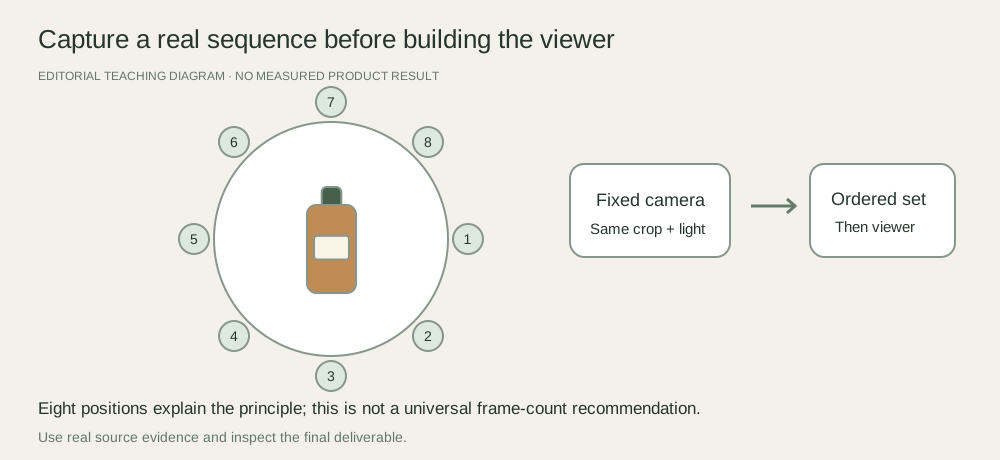
Center the item on the rotation axis and test a full turn before capture. Keep camera position and crop fixed, with room for the widest orientation. Use a consistent focus and exposure workflow so neighboring frames do not pulse or change size. Iconasys describes a turn, stop and capture sequence with fixed manual focus in its Lightroom workflow.
Choose frame count through a pilot suited to your viewer and product. More frames can make the motion appear smoother but increase handling and delivery work; this page does not promise a universal count. Preserve numeric frame order and inspect the entire loop rather than only the first frame.
Review the loop and the live viewer
Look for axis wobble, clipped handles, changing crop, missed frames, lighting flicker and a discontinuity when the last frame returns to the first. Recheck logos and factual construction at the back and sides. Then test the delivered viewer on a phone, including controls and the still fallback.
Fayvoro does not capture a turntable sequence, generate a guaranteed physically consistent rotation or host a 360 viewer. Use real captures for all-around evidence. A separately reviewed generated scene may support the product page, but it is not a frame in a verified product spin.