PRODUCT STORIES / A CREATIVE GUIDE

BigCommerce Product Images

Treat the image URL as part of the catalog record.

A catalog import can point to an attractive file that belongs to a different SKU. Keep the real product, approved image URL and intended thumbnail or variant role together before moving any new scene into BigCommerce.

Sign up for 3 free credits · Your starting direction is included.See the example
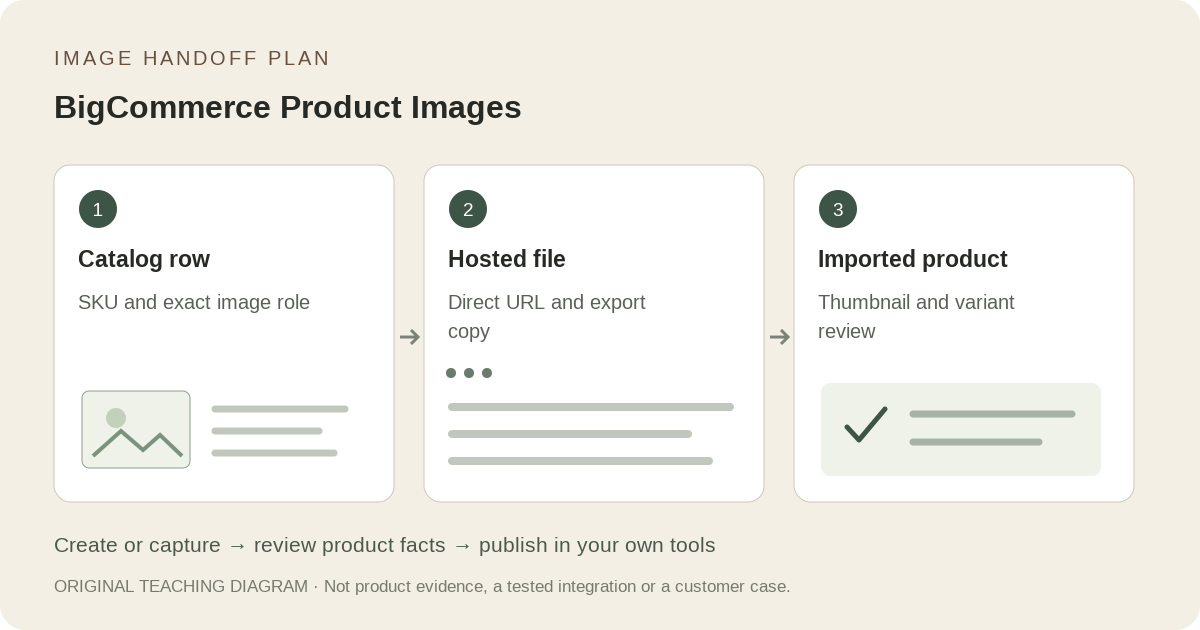
Original illustrative workflow: Catalog row, Hosted file, Imported product
EDITORIAL CONCEPT
01 / EXAMPLEILLUSTRATIVE CONCEPT
What this shows

Give each image a specific delivery job.

This illustrative workflow separates image creation from the checks and publishing steps you complete in your own tools. The sequence is a planning aid, not a tested integration or evidence of listing approval.

Original illustrative workflow: Catalog row, Hosted file, Imported product
Editorial conceptOriginal teaching diagram, not a product photograph, Fayvoro result, platform screenshot or customer case.

This image is an editorial concept made for the site. It is not a Fayvoro generation or customer result. AI can change product shape, color, packaging, labels, and text. Check every important detail against the real item.

YOUR STARTING IDEA

Take the direction. Make it your own.

Explore a supplementary scene from my uploaded real product. Show the complete outline and leave space for a square crop. Do not alter variant color, packaging text, included pieces or identifying features. I will approve the download before adding its URL to my catalog.
Add your reference photo in the studio, then adjust the direction.
Before you publish

Compare the result with your real product and your destination’s requirements.

  • Image URL returns the file without a login or sharing-page step.
  • Actual format, dimensions and file size match the chosen import path.
  • SKU, thumbnail and variant assignments were checked in a pilot.
  • Live storefront image matches the imported catalog record.
02 / A PRACTICAL WORKFLOWSTART WITH YOUR PHOTO
01

Prepare one pilot catalog row

The BigCommerce import guide describes image rows and a referenceable HTTP or HTTPS image URL. Start with one product that has a main image and a meaningful variant. Record the exact SKU, file, intended thumbnail role and variant assignment. This pilot is easier to investigate than an entire catalog of uncertain URLs.

02

Check the delivered file instead of its name

The current guide lists JPEG/JPG, GIF, WebP and PNG, an 8 MB maximum and an optimal 1280 by 1280 size. A renamed extension does not change the actual file type. Open the public file, inspect dimensions and byte size, and make a separate web export when needed. An editing-document link is not an image URL.

03

Keep variant facts out of generated guesses

The import guide states that one image can be added per variant. Decide which exact view identifies that option; do not assign a styled image that obscures the difference. Fayvoro can supply a reviewed supplementary scene through manual download, but has no BigCommerce catalog connector or variant mapping automation.

04

Inspect the imported product and rollback record

After the pilot import, inspect the catalog thumbnail, main product view and the selected option on the live storefront. Check that the URL is reachable and the image belongs to the right item. Keep the previous image mapping, import file and approved replacement so a mismatch can be corrected without guessing which asset changed.

Common questions

A few things to know.

Does Fayvoro import a BigCommerce catalog?

No. This guide separates image creation from your own catalog upload and import process.

Is 1280 by 1280 an output promise from Fayvoro?

No. It is the optimal size stated in the linked BigCommerce guide. Check your actual generated file and prepare a separate export.

Can an import success message prove the right image appears?

No. Inspect the live product and selected variant after import. The wrong URL can still refer to a valid image.

Make your image with intention.