Preview a new shade with the AI hair color changer
Upload a portrait and describe the hair color you want. Generate a visual preview that helps you compare shades, highlights, and the balance with your existing style.
JPG, PNG or WebP · Up to 10 MB
Review the prompt and credit cost in the studio before generating.
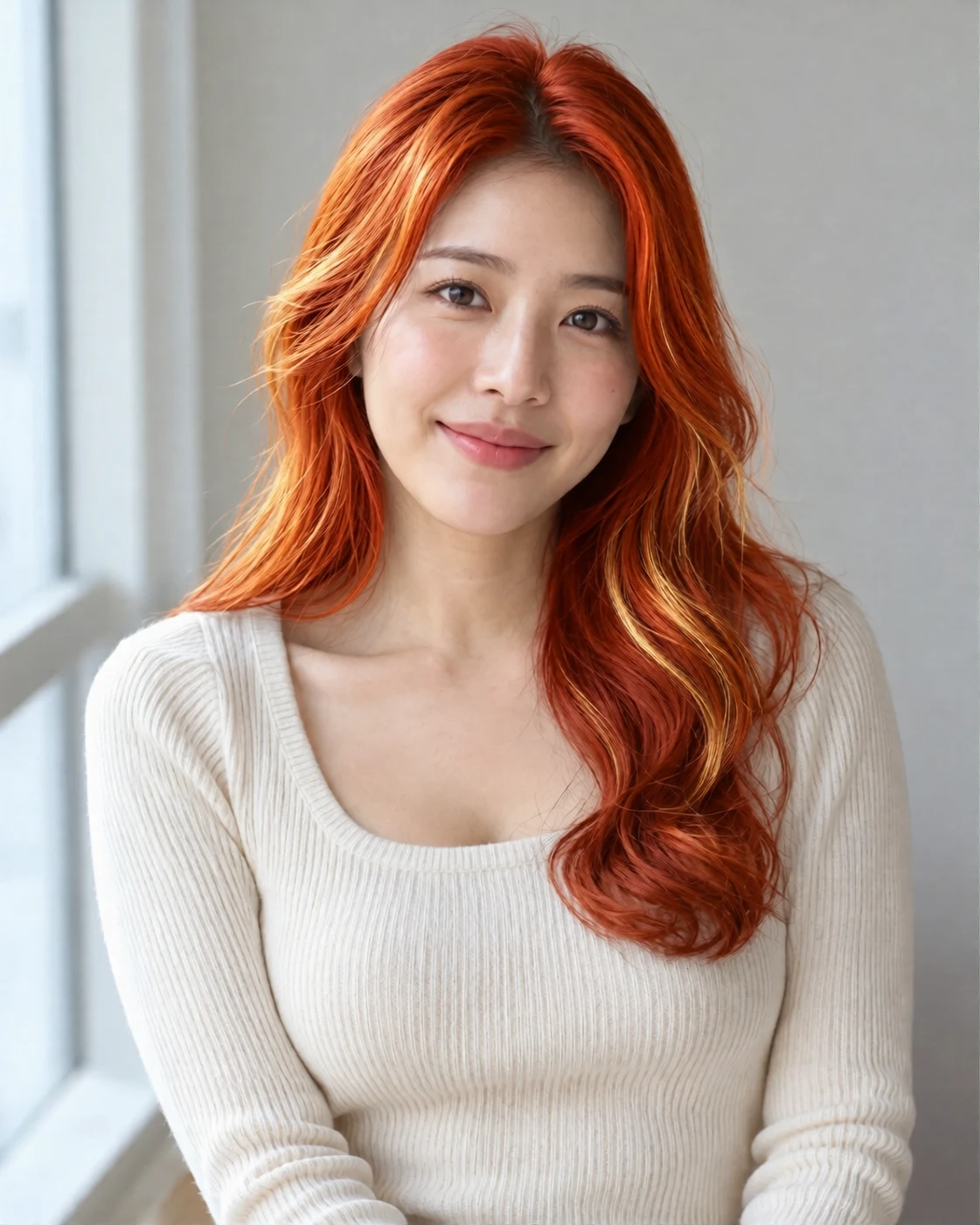
An AI-created edit of the fictional reference shown here. Compare the face, structure and details before using your own result.
A FEW WAYS IN
Explore the example. Make it yours.
Open a prompt to see the starting idea. You choose when to generate.
AI INSPIRATION
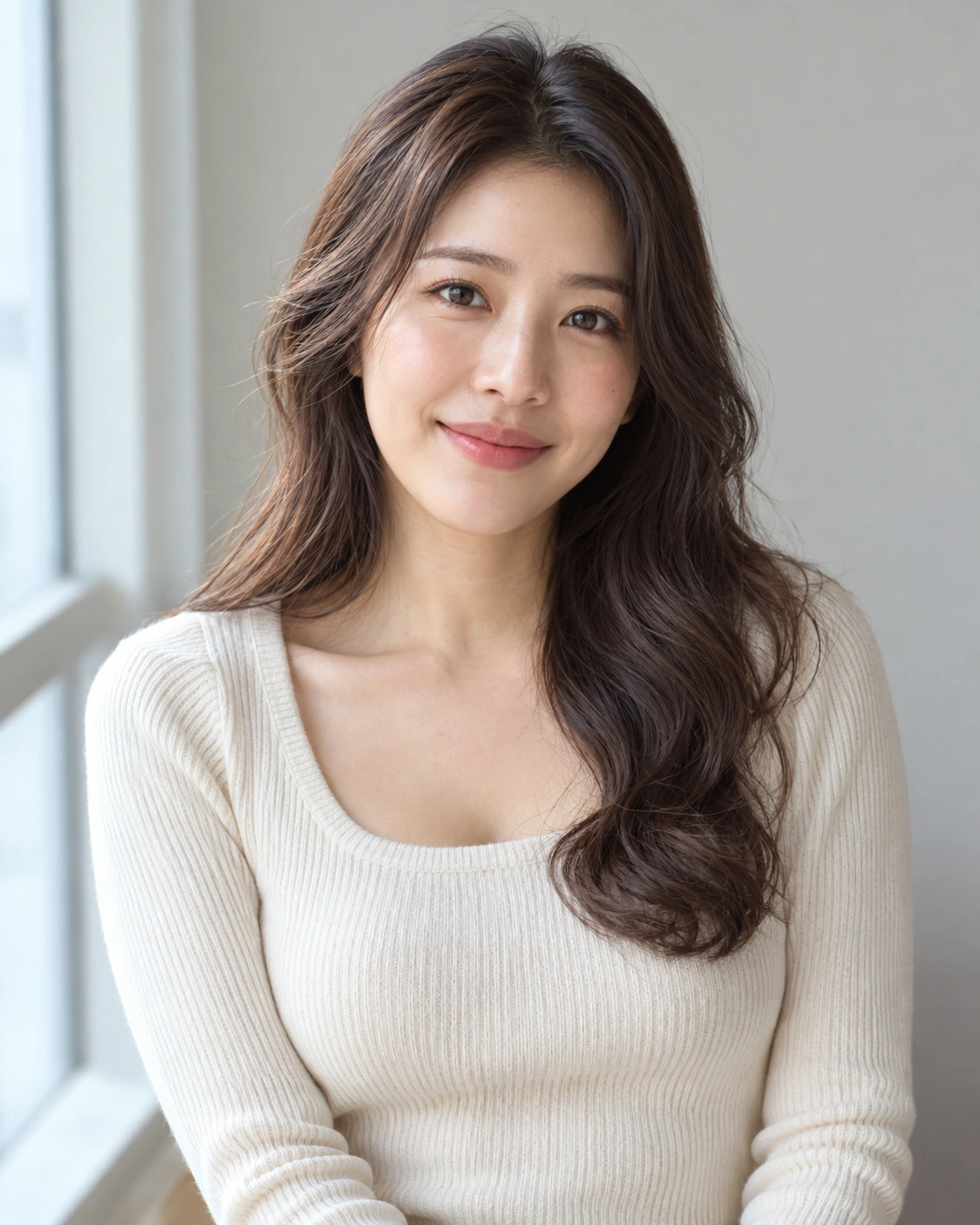
REFERENCE
From dark waves to vivid copper
An AI-created edit of the fictional reference shown here. Compare the face, structure and details before using your own result.
Explore the prompt
Change only this fictional adult woman's hair color to rich luminous copper red, with natural dark auburn roots and fine golden-copper strands. Make the color change unmistakable, glossy but realistic. Preserve her recognizable adult face, dark eyes, existing long waves, ivory top, pose, skin texture and window background. Hair-color preview, natural daylight. No text or extra people.
MAKE IT MORE YOURS
A little intention. A different image.
01
Start with evenly lit, visible hair
Choose a portrait where the hair is easy to separate from the background. Natural window light often shows the current color more clearly than a colored room light. Include the roots and ends if you want an all-over preview. A hat, heavy shadow, or hair hidden behind shoulders leaves less information for the edit, especially when you are comparing subtle shades.
02
Describe placement as well as shade
A color name alone leaves many decisions open. Specify whether you want an even chocolate brown, copper with lighter face-framing pieces, or a pastel tint across the ends. Mention root depth, warmth, and how strong the contrast should be. Keep the cut unchanged when comparing colors so a new fringe or different length does not distract from the decision you are trying to make.
03
Use the preview to discuss a direction
Compare the hairline, eyebrows, skin tone, and background with your original before judging the color. Watch for tint bleeding into skin or clothing, and ask for a more localized edit if needed. Bring a preferred concept to a stylist as a visual conversation starter. A generated preview cannot predict dye chemistry, bleaching requirements, or the shade that a particular product will produce on your actual hair.
BEFORE YOU BEGIN
A few useful answers.
Can I preview highlights instead of all-over color?+
Yes. Describe their placement and strength, such as soft caramel highlights around the face or a brighter color only at the ends.
Will the preview tell me which dye to buy?+
No. It illustrates a color direction. A stylist can assess your current hair, previous treatments, and the practical steps needed to reach a shade.
Can I keep my haircut the same?+
Ask to change only the hair color. Review the result against the original because generated edits can also alter strands, hairlines, or facial details.
Should I upload a selfie with a color filter?+
An unfiltered, evenly lit portrait gives a clearer starting point. Strong filters can distort both the current hair color and the surrounding skin tones.