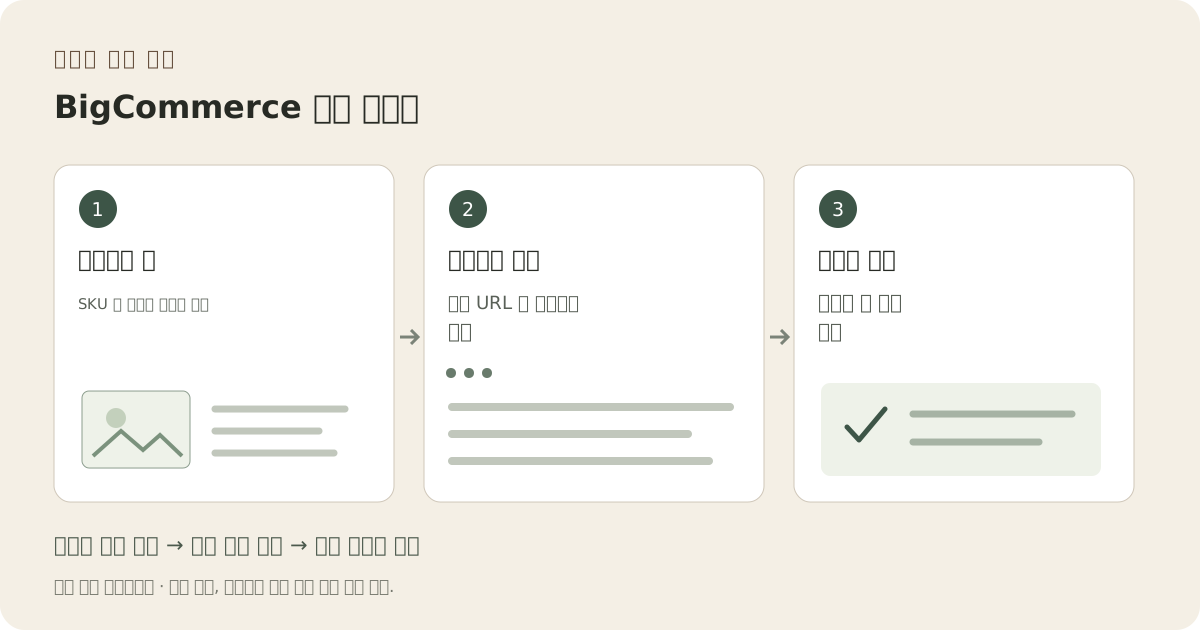
02 / 실용적인 작업 흐름귀하의 사진부터 시작하세요.
01파일럿 카탈로그 행 하나를 준비하세요.
The BigCommerce import guide describes image rows and a referenceable HTTP or HTTPS image URL. Start with one product that has a main image and a meaningful variant. Record the exact SKU, file, intended thumbnail role and variant assignment. This pilot is easier to investigate than an entire catalog of uncertain URLs.
이름이 아니라 전달된 파일을 확인하세요.
The current guide lists JPEG/JPG, GIF, WebP and PNG, an 8 MB maximum and an optimal 1280 by 1280 size. A renamed extension does not change the actual file type. Open the public file, inspect dimensions and byte size, and make a separate web export when needed. An editing-document link is not an image URL.
변형 사실은 생성된 추측에 포함하지 마세요.
The import guide states that one image can be added per variant. Decide which exact view identifies that option; do not assign a styled image that obscures the difference. Fayvoro can supply a reviewed supplementary scene through manual download, but has no BigCommerce catalog connector or variant mapping automation.
수입된 제품과 롤백 기록을 점검하세요.
After the pilot import, inspect the catalog thumbnail, main product view and the selected option on the live storefront. Check that the URL is reachable and the image belongs to the right item. Keep the previous image mapping, import file and approved replacement so a mismatch can be corrected without guessing which asset changed.